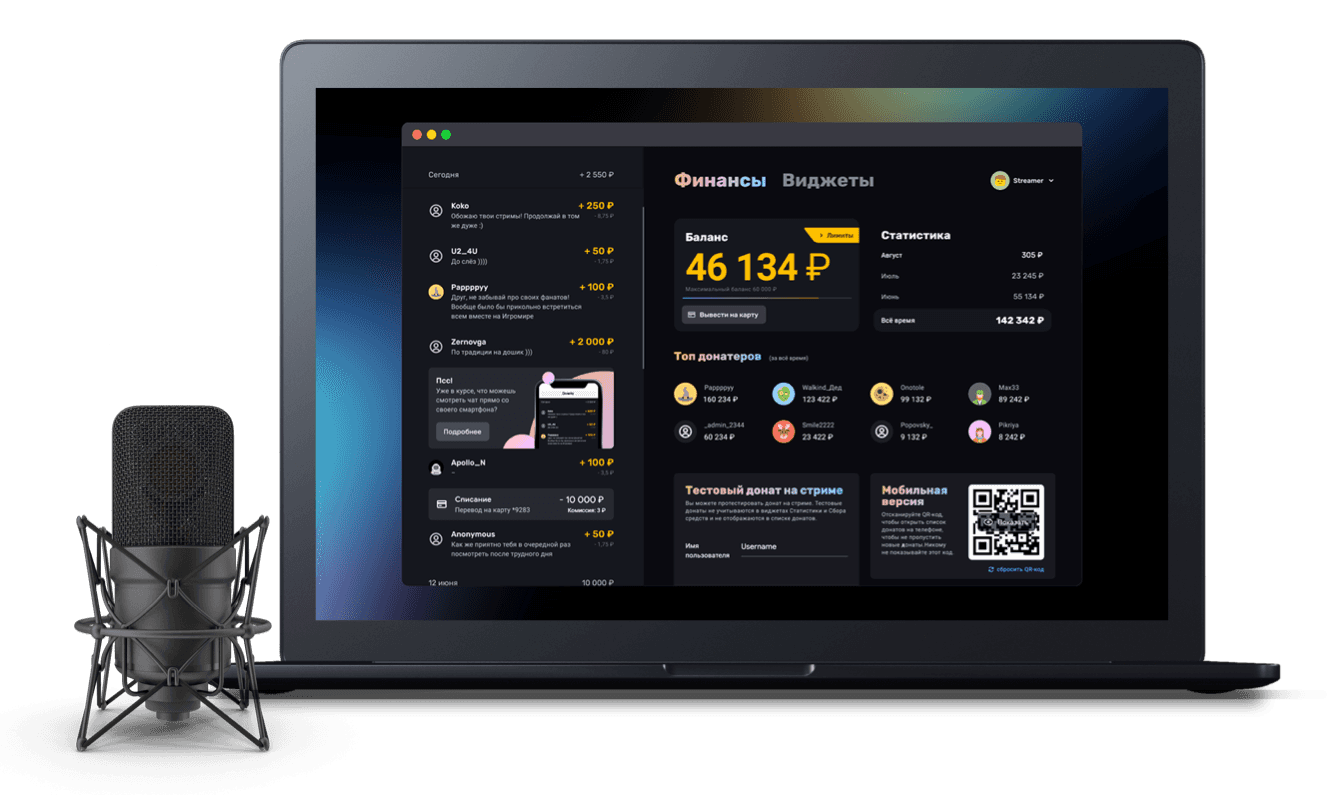
How to connect Donation Alerts to Donatty
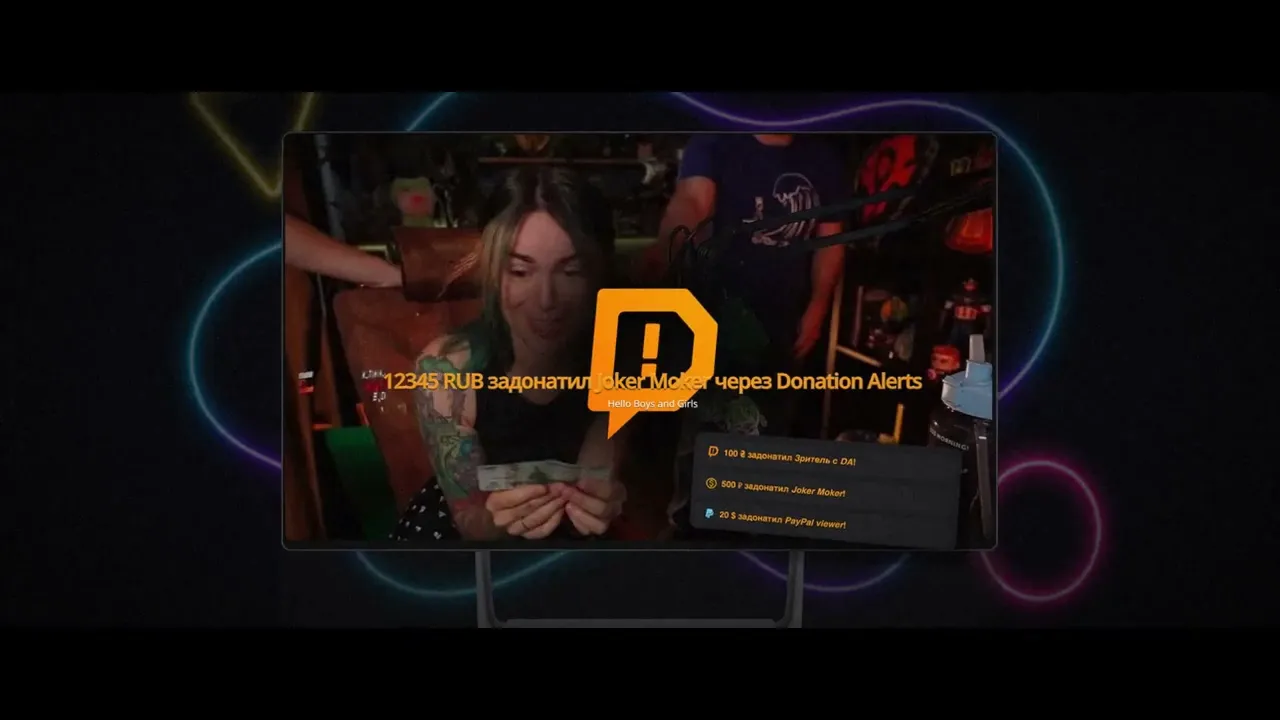
Connecting your Donation Alerts account as a data source: DA donations will appear in Donatty alerts, the goal bar, the Top widget and the events list
If you also accept donations in Donation Alerts, you can show them on stream through Donatty widgets — together with Donatty donations or separately. To set it up, you need to:
Connect Donation Alerts as a data source;
Decide whether to transfer your donation history from DA;
Enable Donation Alerts in the widgets where you want its donations.
Important: Donation Alerts as a data source works on the PRO subscription. Without a subscription, the “Connect Donation Alerts” button is visible, but the text under it says “Available on the PRO subscription”, and clicking it opens the subscription checkout.
Connecting Donation Alerts as a data source
There are two ways to connect Donation Alerts:
In your Donatty profile settings;
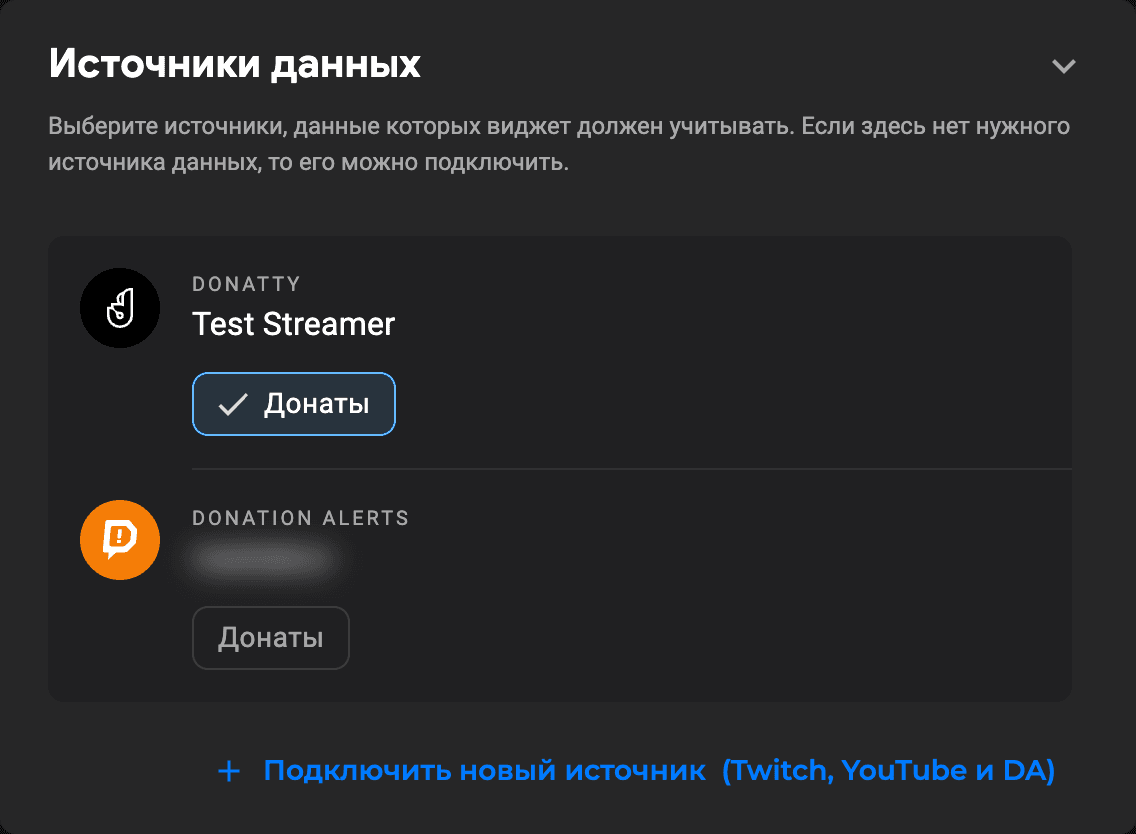
In the settings of any widget, in the Data sources block.
You cannot sign in to Donatty with Donation Alerts: DA can only be connected as an additional account to one that already exists.
Connecting in your profile settings
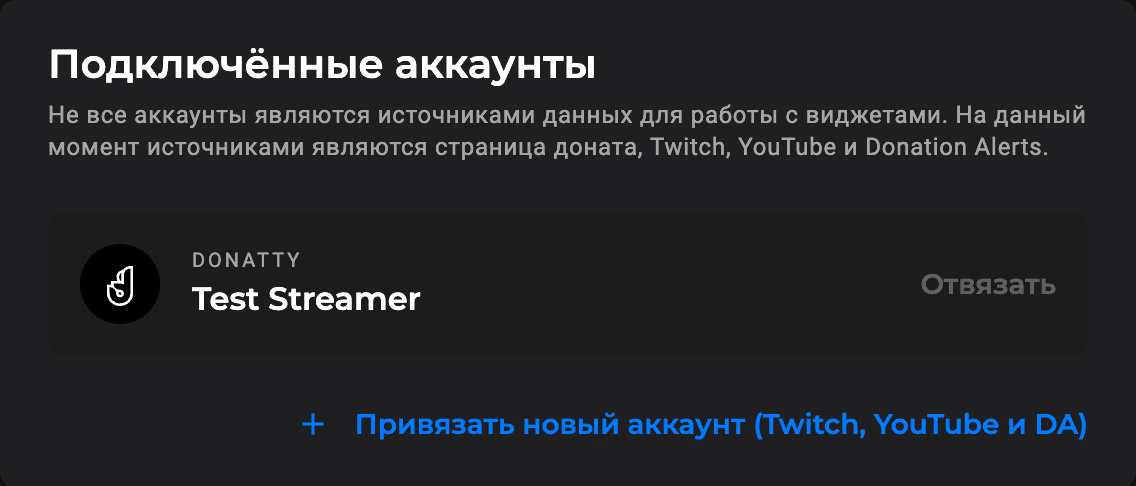
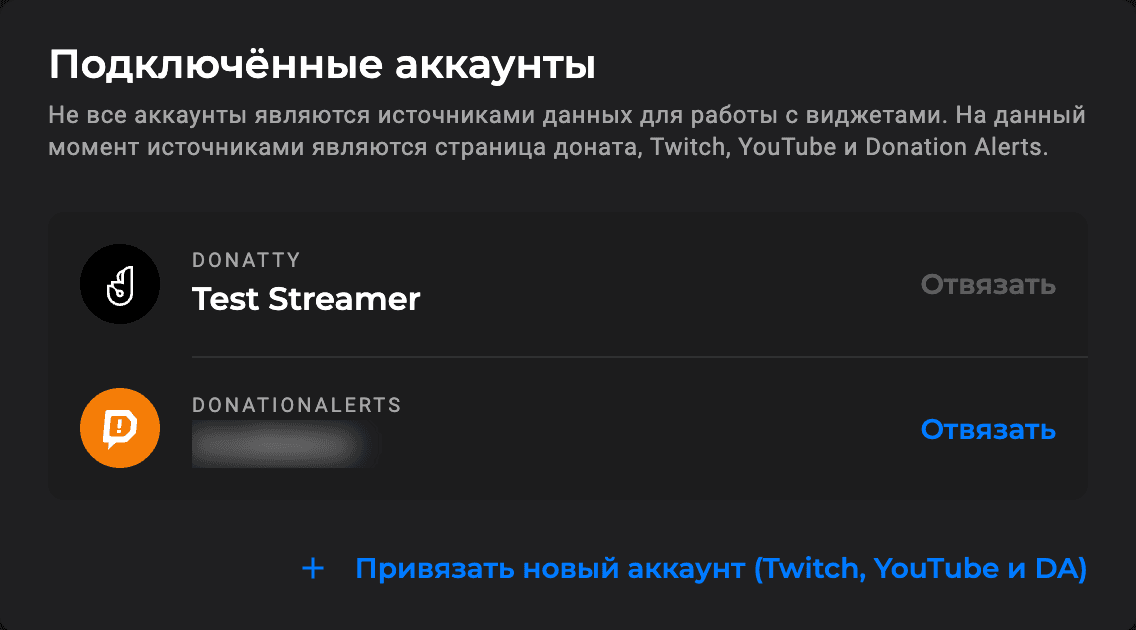
Click your avatar in the top right corner and choose Settings. In the “Connected accounts” block, click Link a new account (Twitch, YouTube and DA).
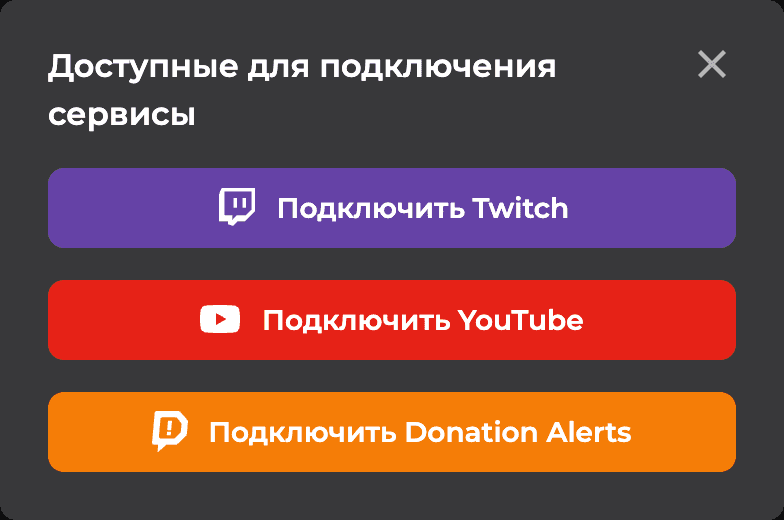
In the window that appears, choose Connect Donation Alerts. The Donation Alerts window will open — sign in to your DA account if you have not already, and confirm access.
Connecting in the widget settings
You can also connect Donation Alerts right while configuring a widget. To do that, in the Data sources block, click Connect a new source (Twitch, YouTube and DA) and, in the window that appears, choose Connect Donation Alerts.
Transferring your donation history
Right after you connect for the first time, we will ask whether to transfer your donation history from Donation Alerts.
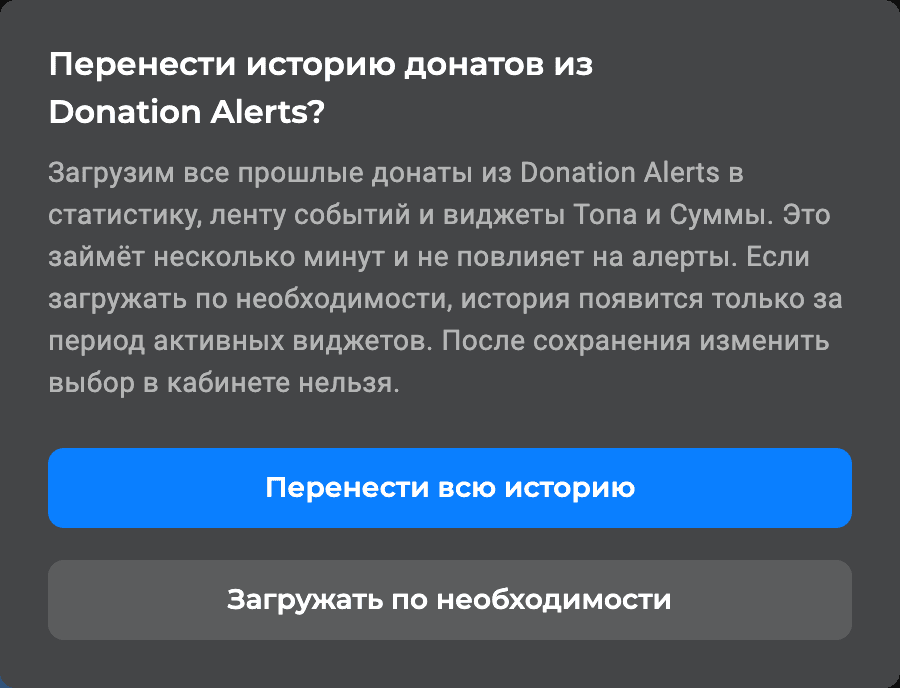
Transfer all history — we will load all past donations from Donation Alerts into your statistics, events feed and the Top and Total widgets. This takes a few minutes.
Load as needed — history will appear only for the period your active widgets use. For example, if the Top widget is set to “Current month”, we will load donations for the current month.
With either option, past donations are not played by alerts.
Important: once saved, this choice cannot be changed in the dashboard. If you plan to show an all-time top of donors, or want to see old DA donations in your statistics, choose Transfer all history.
After you connect, Donation Alerts will appear in the list of connected accounts.
What is created automatically
After you connect, we create a widget group called “Donation Alerts events” with the nickname of your DA account, and inside it an alert widget called “New DonationAlerts donation”. It is already set up to show Donation Alerts donations: all that is left is to add it to OBS.
Enabling Donation Alerts in widgets
Connecting on its own shows nothing on stream: you need to enable Donation Alerts in the widgets where you want its donations. Here is how to do it for each widget:
How to connect Donation Alerts fundraising to the Donatty goal bar
How to connect donations and donors from Donation Alerts to the Donatty Top
How to connect donations from Donation Alerts to the Donatty Events widget
What does not come through from Donation Alerts
Donation Alerts passes us the donor’s nickname, the amount, the currency and the message text. As a result:
media and voice messages from DA are not shown on stream;
a DA donation has no donation goal, so the {purpose} tag is empty for it;
there is no test donation from Donation Alerts: the “Test on stream” buttons send a test from Donatty.
How to disconnect Donation Alerts
In your profile Settings, click Unlink next to Donation Alerts. After that, donations from DA will stop reaching your widgets. To get them back, connect the same Donation Alerts account again.