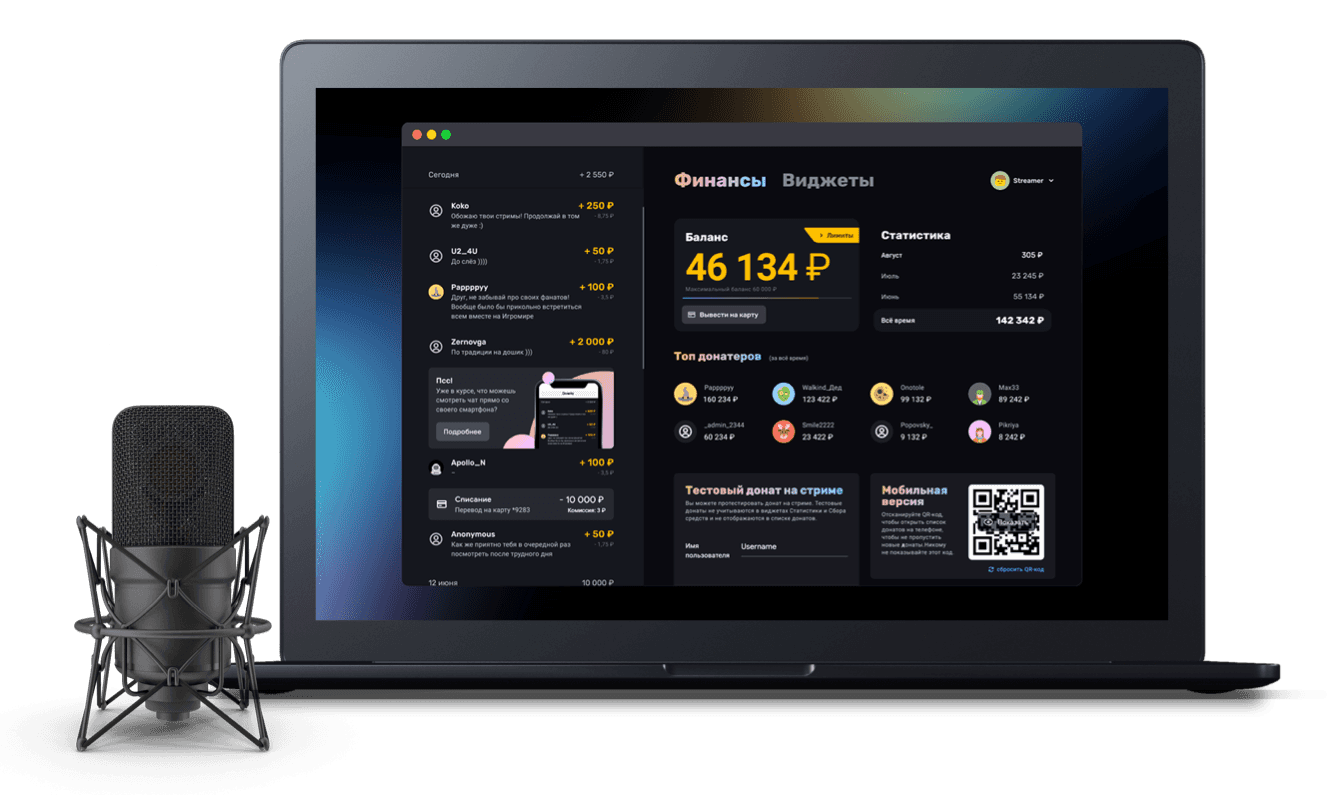
How to connect donations and donors from Donation Alerts to the Donatty Top
Showing a combined top of donors and donations from Donation Alerts and Donatty
If some of your viewers donate through Donation Alerts and some through Donatty, the Top on your stream can count both services. We convert DA amounts in other currencies to roubles at the Central Bank rate.
To set it up, you need to:
Connect Donation Alerts as a data source;
Enable Donation Alerts donations in the Top widget;
Choose the data and the period;
Show the Top on your stream.
Important: Donation Alerts as a data source works on the PRO subscription.
Connecting Donation Alerts as a data source
We explain how to connect Donation Alerts in the guide How to connect Donation Alerts to Donatty.
Tip: when you connect, we will ask whether to transfer your donation history. If your Top collects data for all time or for a long period, choose Transfer all history — then old DA donations will go into the Top straight away.
Enabling Donation Alerts donations
Open the Top widget settings and, in the Data sources block, click Donations under Donation Alerts.
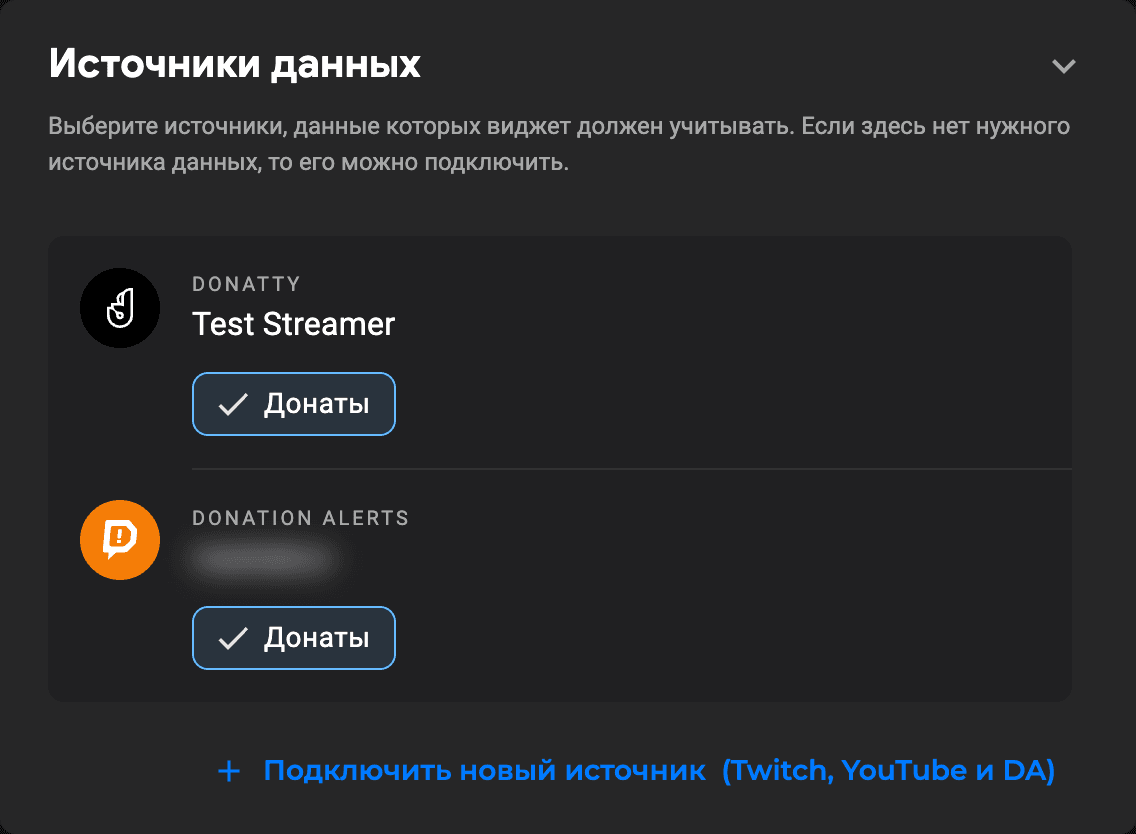
If the Top should show only donations from Donation Alerts, turn off Donations under Donatty.
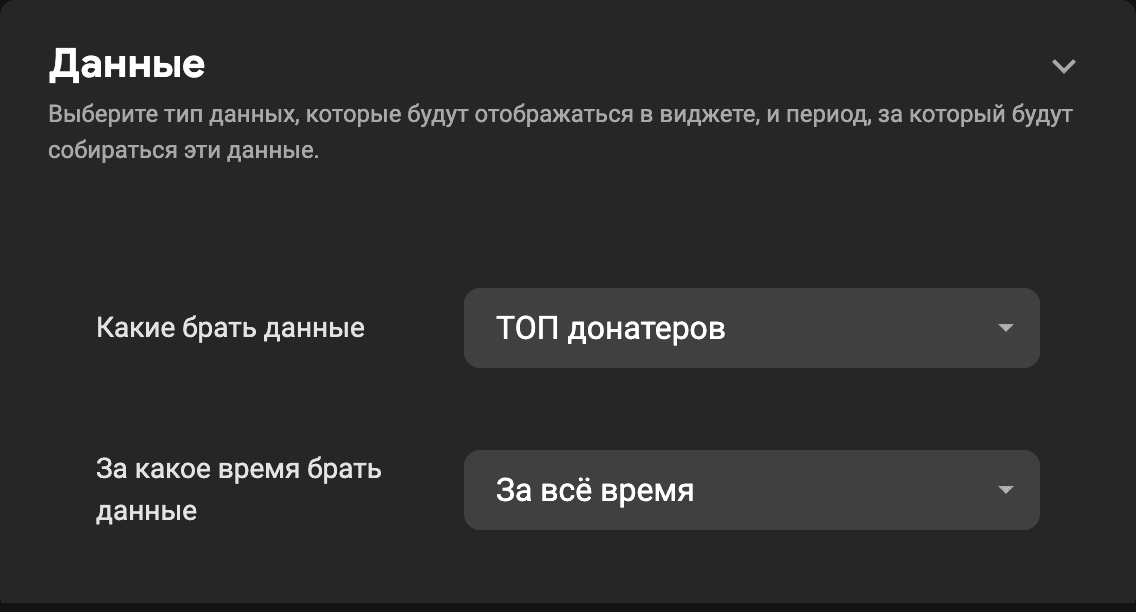
Which data and for what period
In the Data block, choose what to show and the period to collect data for. Donation Alerts donations are counted for the same period as Donatty donations.
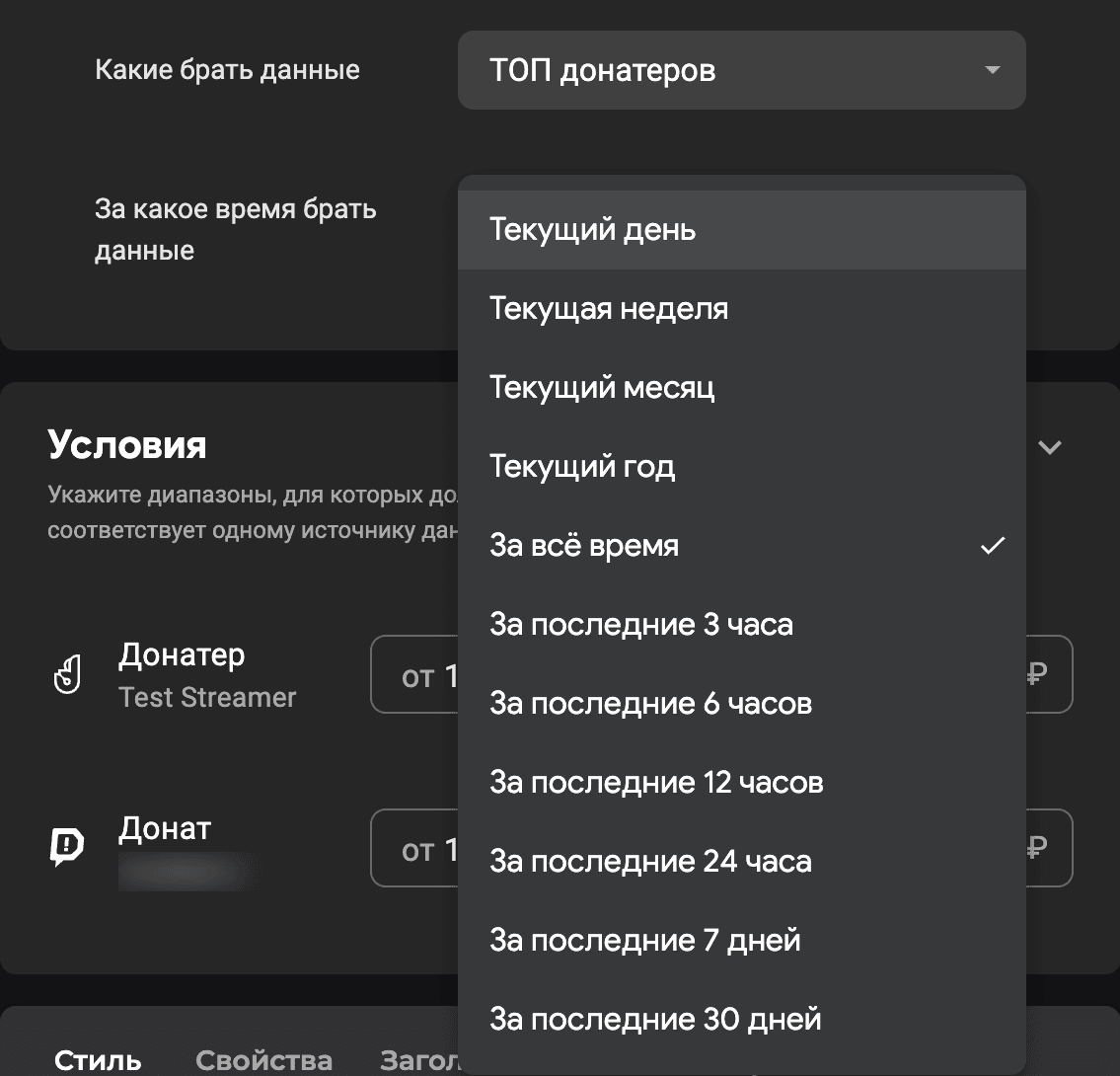
Conditions
In the Conditions block, Donation Alerts has its own row with an amount range, independent of Donatty.
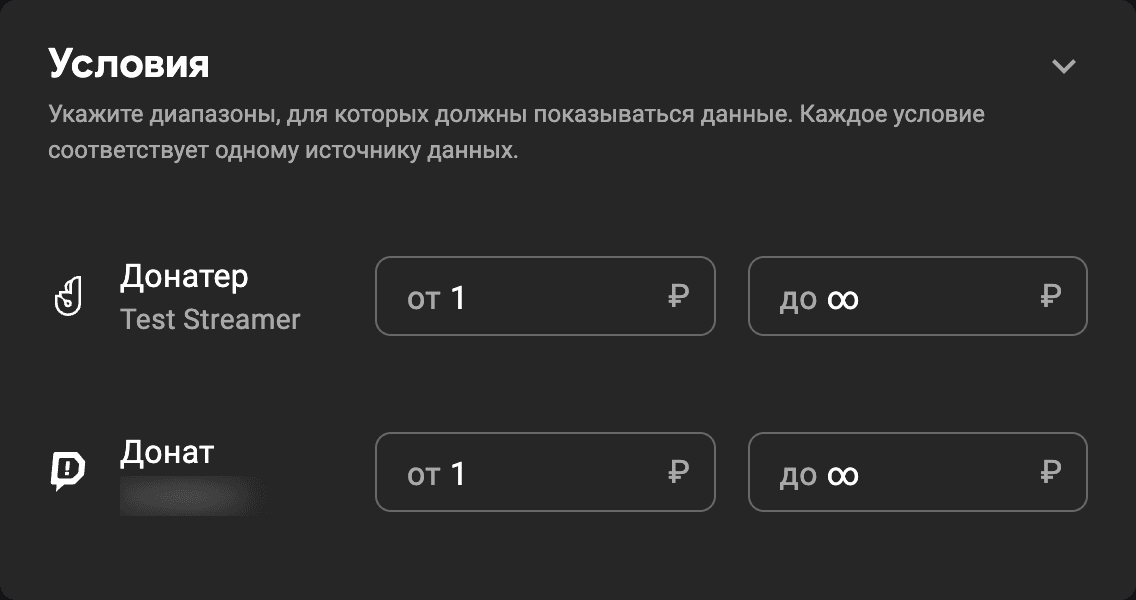
Don’t forget to click Save settings.
Important: if a donor has the same nickname in Donatty and in Donation Alerts, the Top will show two separate rows. We cannot verify that it is the same person, so we do not add them together.
Adding the Top to your stream in OBS
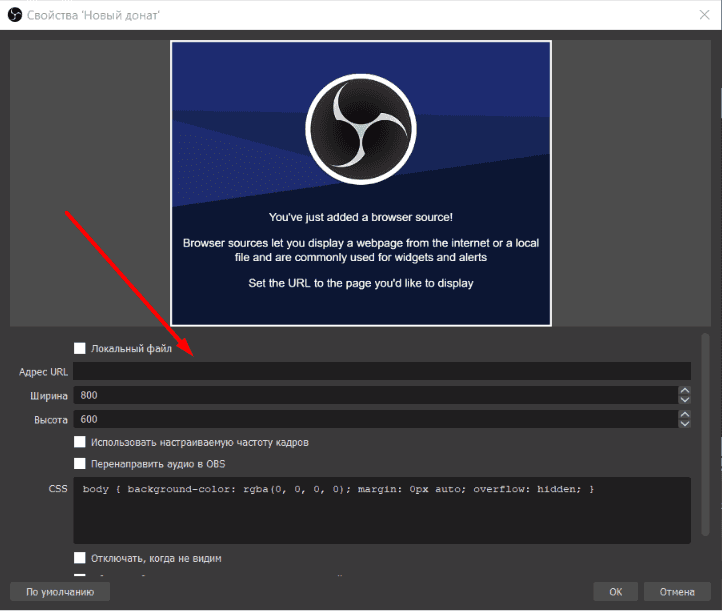
Once the widget is configured, copy the widget link. You will find it at the top of the widget settings screen, with the copy button to the right of the link field.

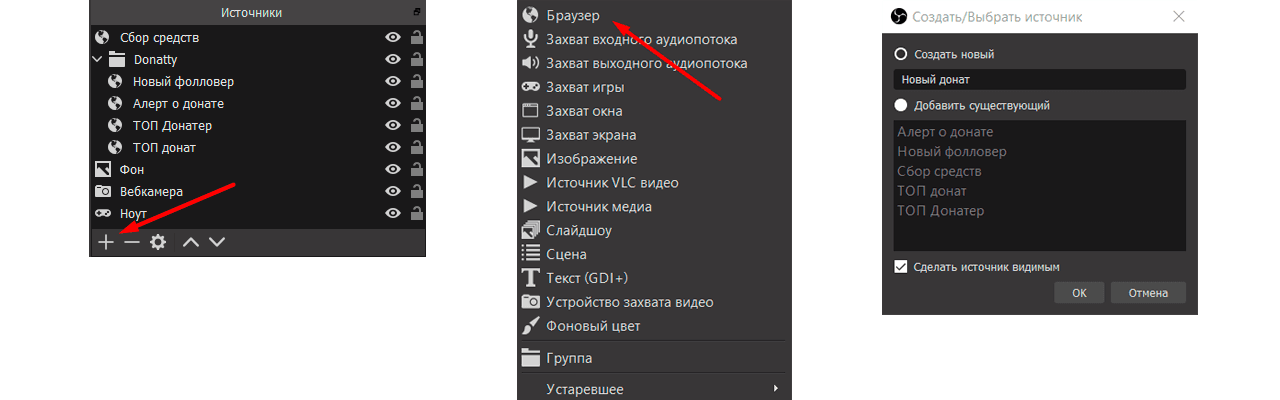
Then go to OBS, click Add in the Sources panel, choose Browser and enter a name for the source, for example “Top donors”. In the dialog that appears, paste the link you copied earlier into the URL field and click OK.
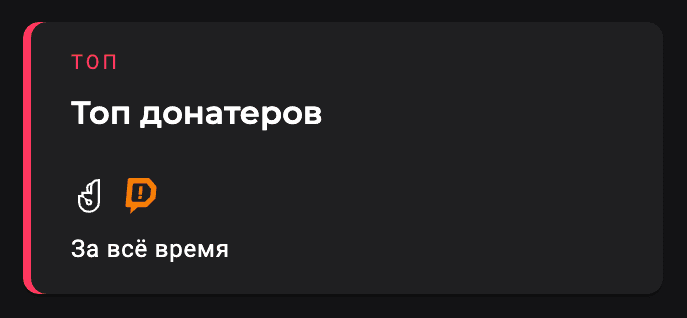
A Donation Alerts icon will appear on the widget card in the Widgets section.
When new Donation Alerts donations reach the Top
While the Top is open in OBS, we regularly fetch new donations from Donation Alerts, and they appear in the Top with a delay of a few seconds. If OBS was closed, the missed donations will be picked up when you open the scene with the Top again.
Tip: the Total widget works the same way: enable Donations under Donation Alerts in it, and DA donations will be included in the total amount.