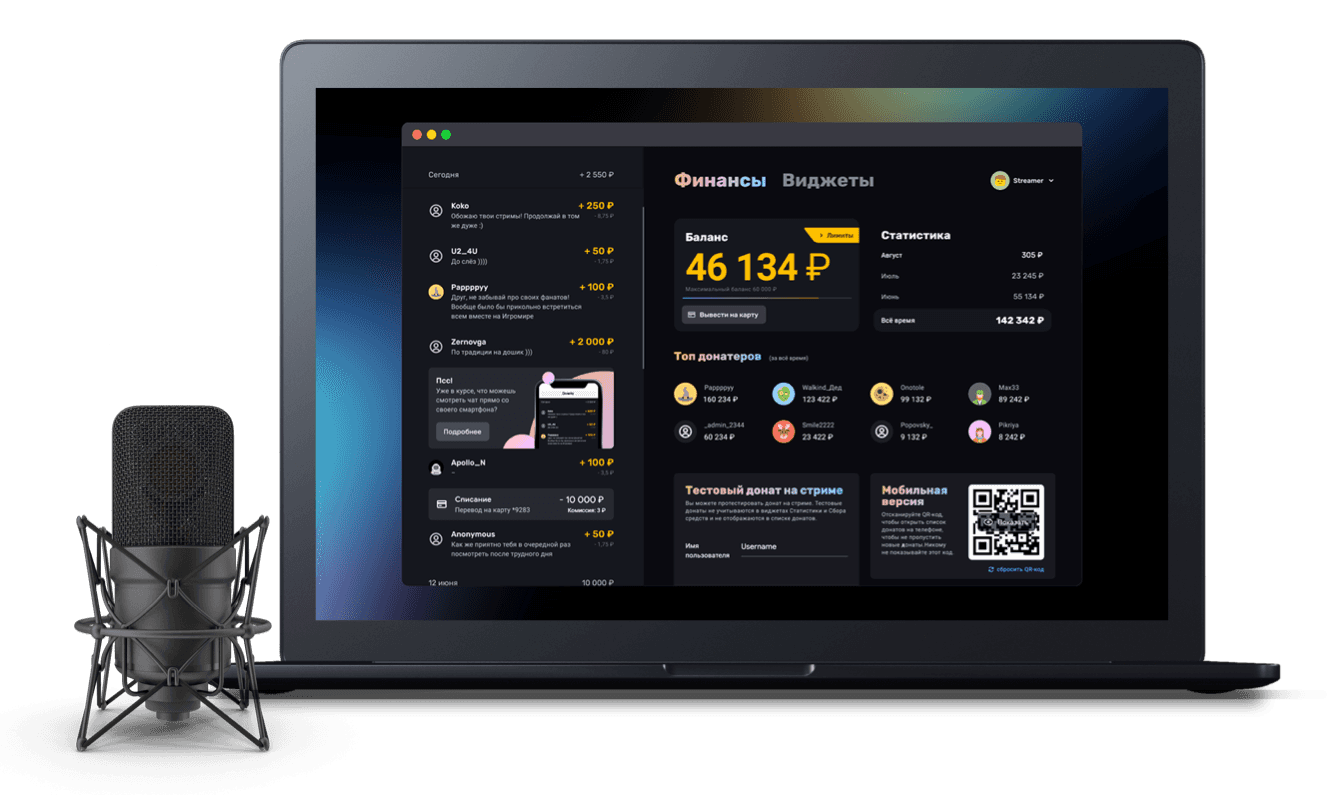
How to connect Donation Alerts donation alerts to Donatty
Showing Donation Alerts donations in Donatty alerts: enable the source, set amount conditions, add it to OBS
If you accept donations in both Donation Alerts and Donatty, you do not have to keep two separate alerts on your scene. The Donatty alert widget can show donations from both services. To set it up, you need to:
Connect Donation Alerts as a data source;
Enable Donation Alerts donations in the alert widget;
Add the widget to your stream.
Important: Donation Alerts as a data source works on the PRO subscription.
Connecting Donation Alerts as a data source
You can connect Donation Alerts in your profile settings or right in the widget settings. We explain how to do it, and what to choose when asked about transferring your history, in the guide How to connect Donation Alerts to Donatty.
Configuring the alert widget
Once connected, we create an alert widget called “New DonationAlerts donation” in the “Donation Alerts events” group. It already shows Donation Alerts donations, and you can add it to OBS straight away.
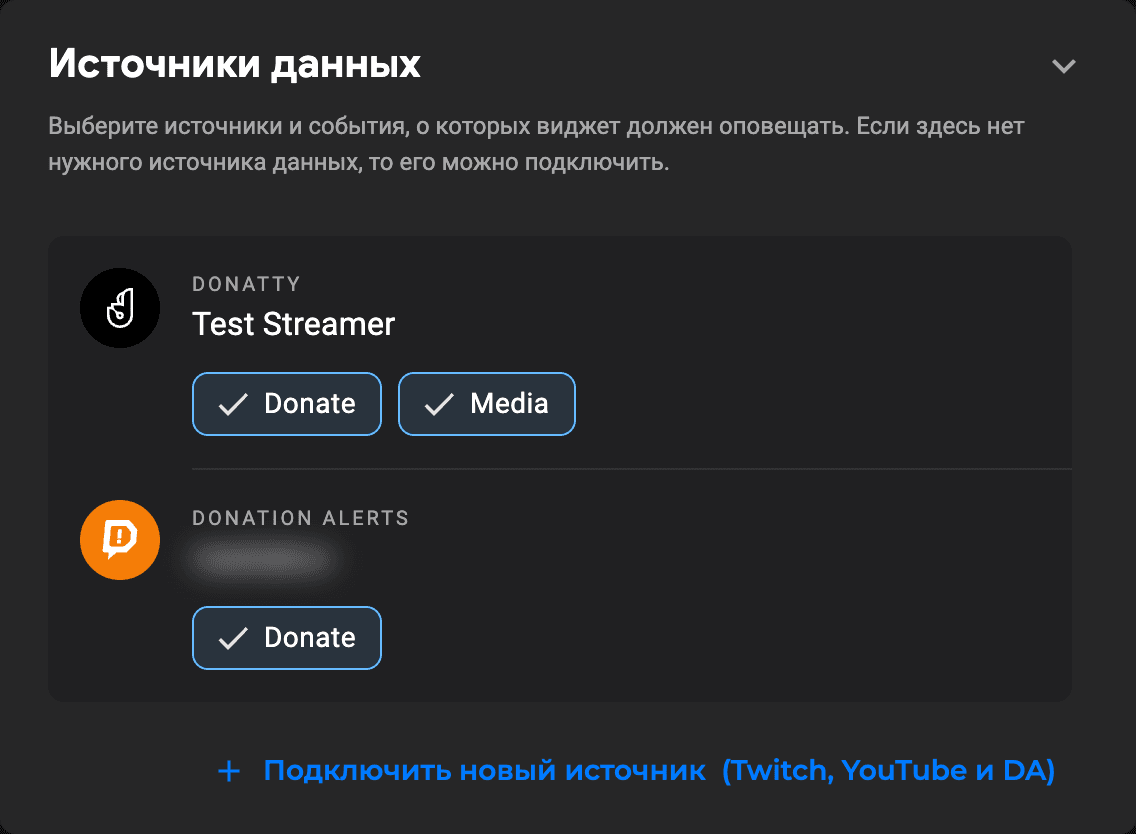
You can also add DA donations to any other alert widget — for example, the one already on your scene. Open its settings and, in the Data sources block, click Donate under Donation Alerts.
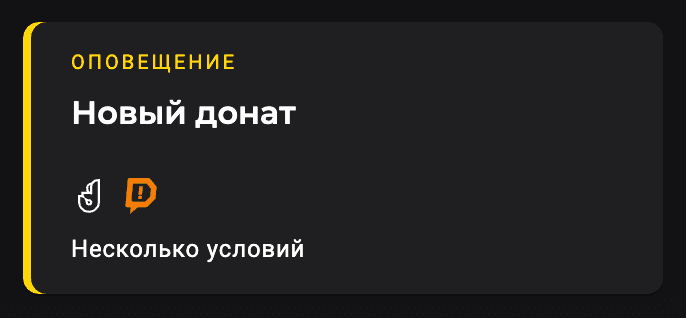
A Donation Alerts icon will appear on the widget card in the Widgets section, so you can see which widgets show DA donations.
Tip: if you want Donation Alerts donations to look different on stream from Donatty donations, create a separate alert widget for them and leave only Donate under Donation Alerts enabled.
Amount conditions
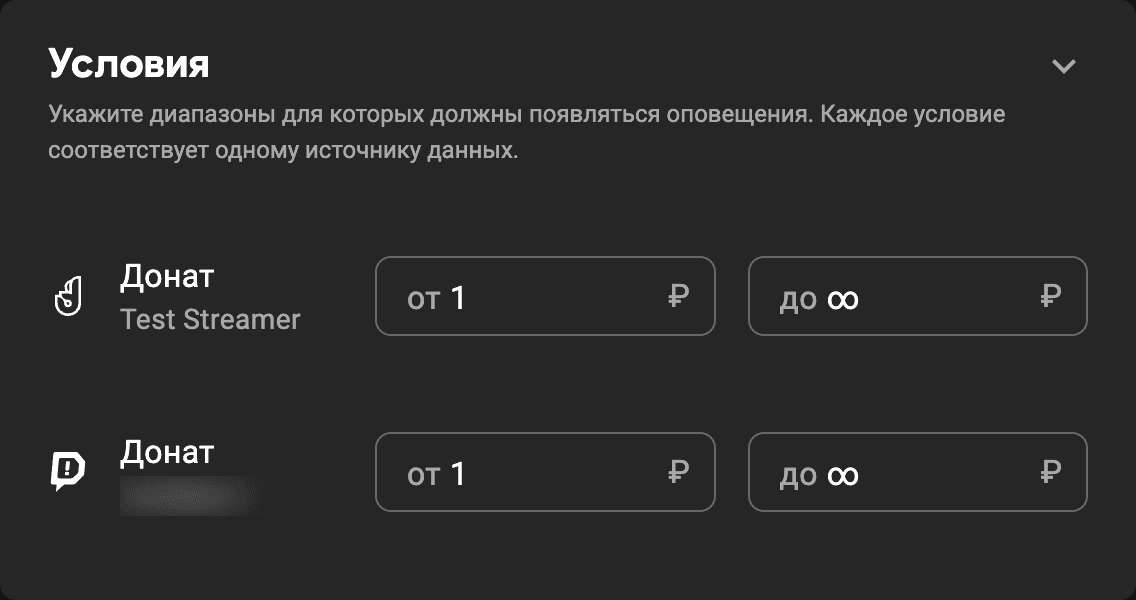
In the Conditions block, Donation Alerts has its own range row: the alert appears only for DA donations that fall within it. When you first enable Donation Alerts in a widget, we fill this row with the same range that is set for Donatty. After that, you can change them independently.
Don’t forget to click Save settings.
Adding the alerts to your stream
The process is the same as for adding any other widget to your stream. Copy the widget link, which you will find at the top of the widget settings screen. To copy it, just click the button to the right of the link field.

Then go to OBS, click Add in the Sources panel, choose Browser and enter a name for the source, for example “DA donations”. In the dialog that appears, paste the link you copied earlier into the URL field and click OK.
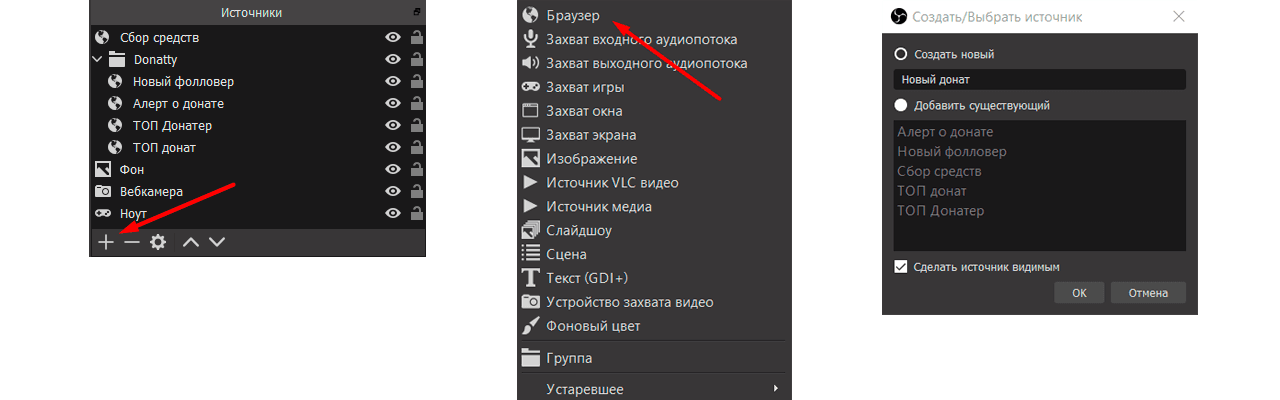
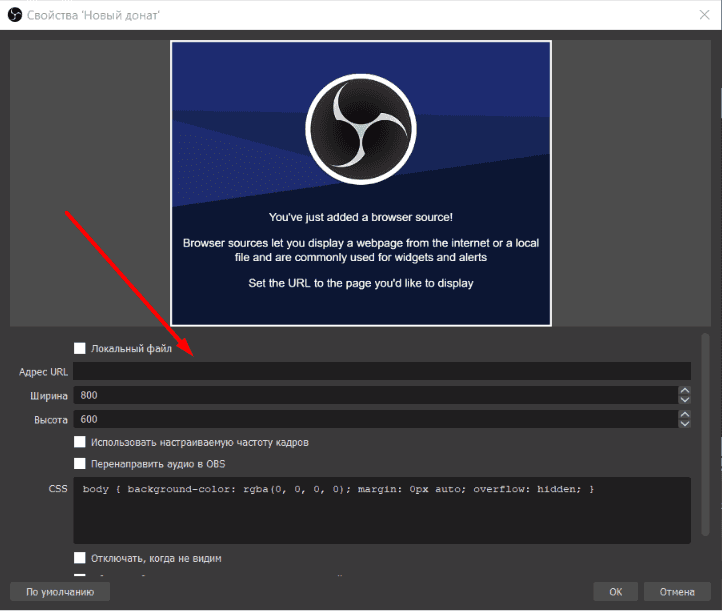
That completes adding the widget.
When the alert arrives
Donation Alerts donations reach the stream immediately, as long as the widget is open in OBS.
Important: if OBS was closed when a donation came in, its alert will not be played afterwards. The donation itself is not lost: it will appear in the events feed in your dashboard and in your statistics.
In the events feed, Donation Alerts donations are marked with a DA icon.
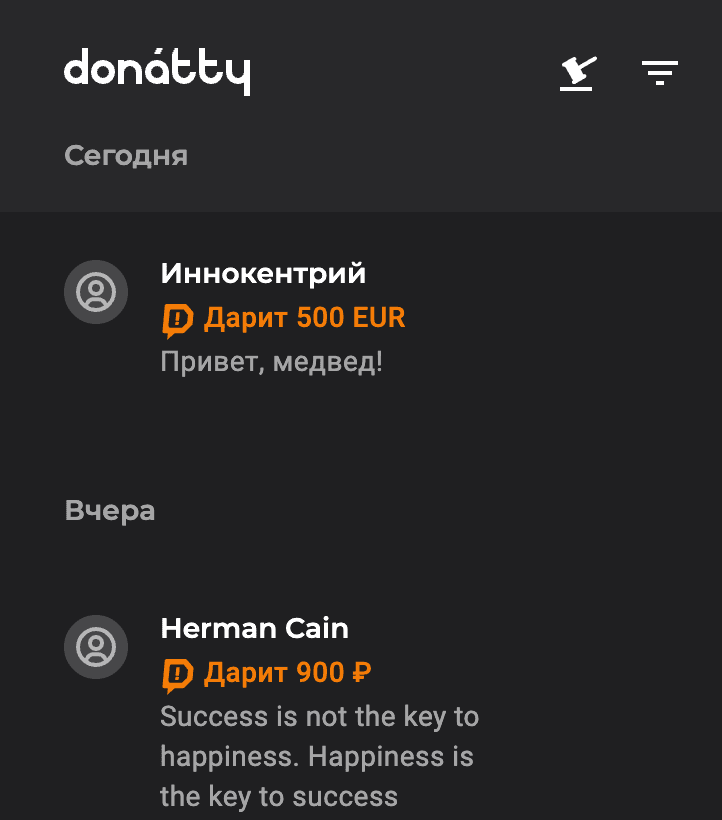
Testing the alert
There is no test donation from Donation Alerts: the Test on stream buttons on the Finance page and in the widget settings send a test donation from Donatty. To check DA donations specifically, send yourself a small donation through your Donation Alerts page while the widget is open in OBS.
What does not come through from Donation Alerts
Donation Alerts passes us the donor’s nickname, the amount, the currency and the message text. The alert will not show media or voice messages from DA, and the {purpose} tag (the donation’s goal) is empty for a DA donation.