How to set up a separate alert for donations with fee compensation or with media
Setting up an alert only for donations with fee compensation or with media: the {amount_compensation} and {video_name} tags, chips on the main alert, OBS
Donations with fee compensation and donations with media can be shown on stream as a separate alert, with its own text, image and sound. To set it up, you need to:
enable compensation or media on the donation page;
create an alert and leave only Compensation or only Media in it;
add the {amount_compensation} or {video_name} tag to the template;
turn off that chip on the main alert;
add the new alert to your stream.
Important: Custom size and text of the compensation, “Enabled by default” and “Animation” are configured on PRO.
Enabling fee compensation
Open Widgets → “Donation page” and find the Donor covers the fee block. Turn on Allow compensation and save your settings.
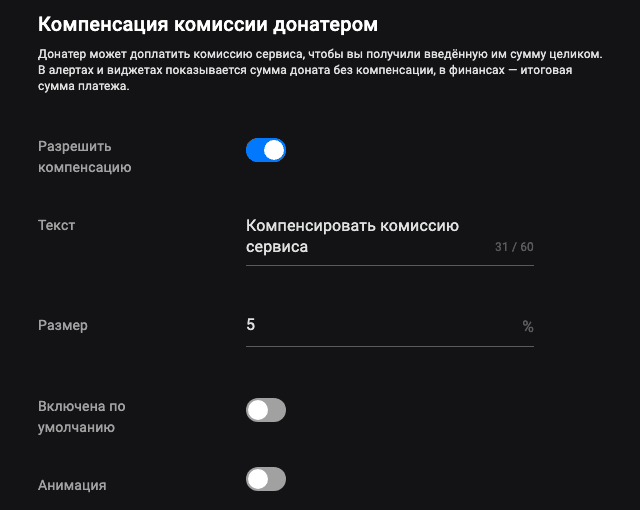
Without PRO, the compensation amount equals the fee of your plan, and the checkbox text is “Cover the service fee”. On PRO you can set your own amount, up to 10%, and your own text, make the checkbox ticked by default and turn on the animation.
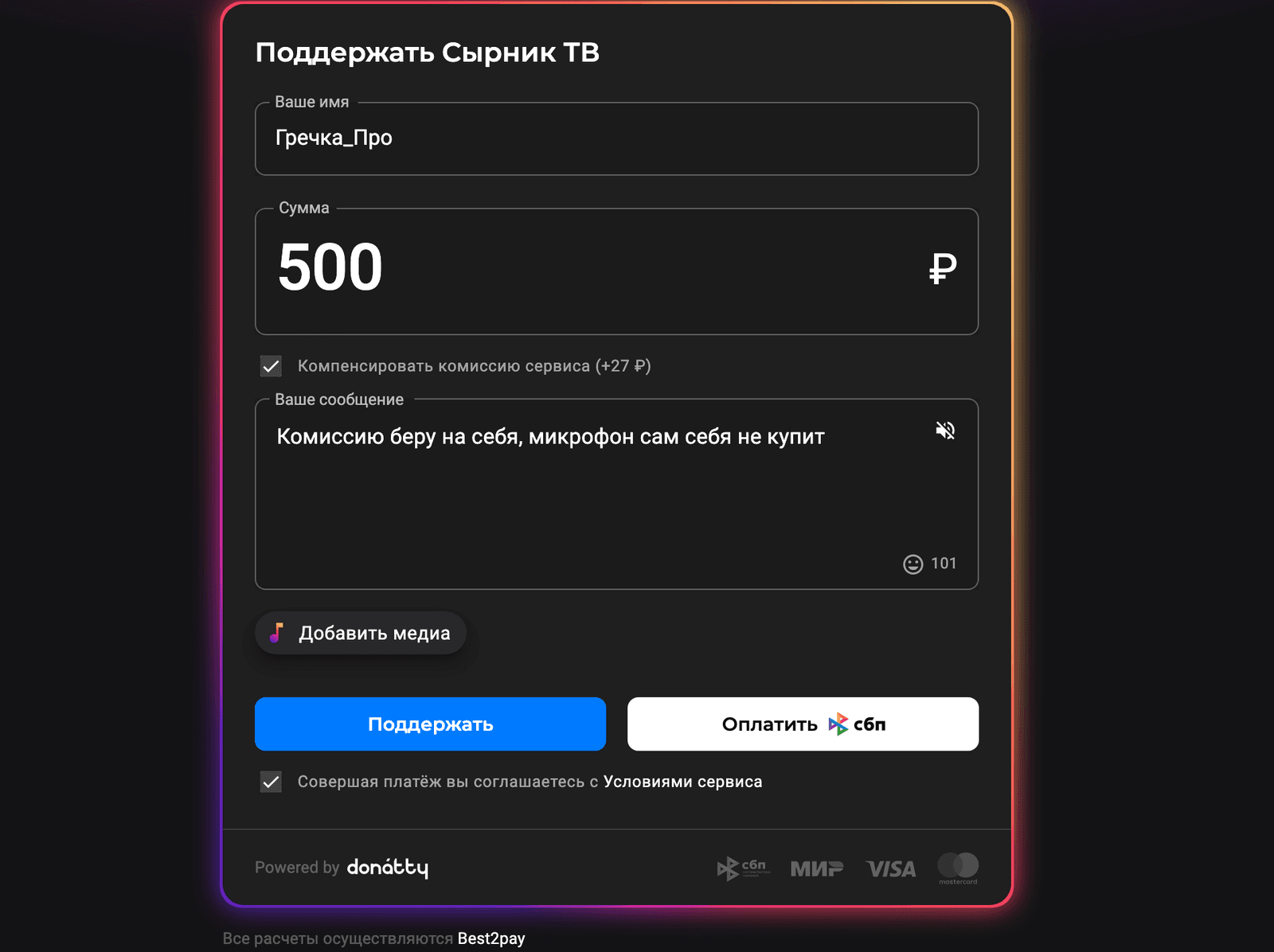
On the donation page, the donor will see a checkbox with the extra amount. If they tick it, you will receive the full amount they entered.
In Finance, a compensation line will appear under the fee for such a donation.
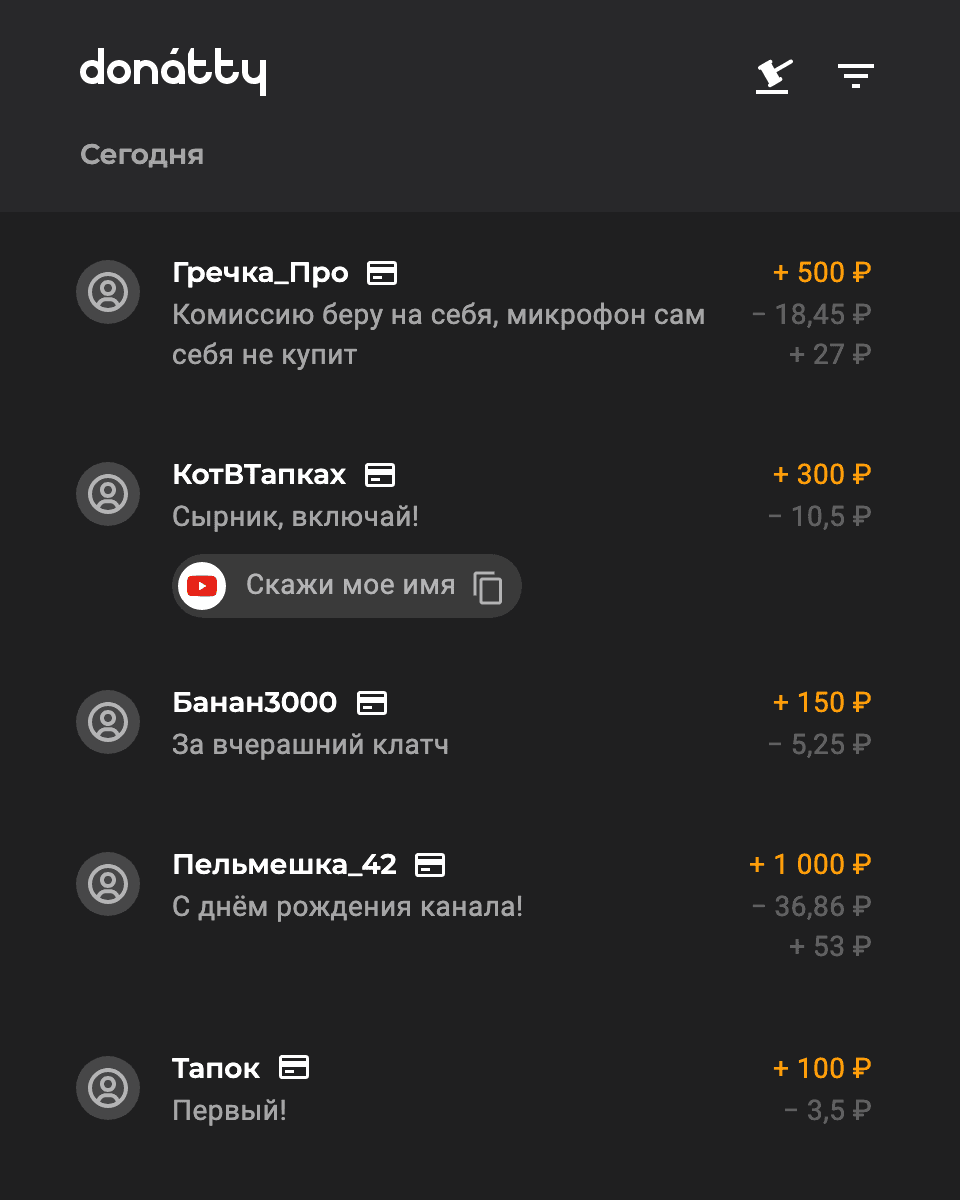
Donations with media are enabled in the same section: the Adding media to a donation block → Allow media on stream. More details in the guide How to set up adding a YouTube video to a donation.
Creating an alert for donations with compensation
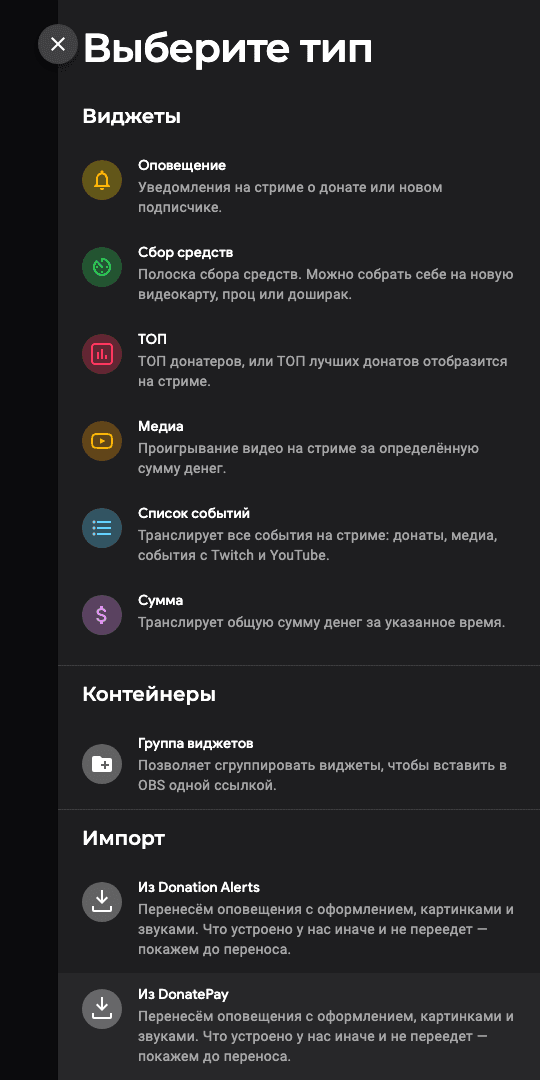
In the Widgets section, click Create and choose Alert. The new widget will appear in the Ungrouped area. Give it a name, for example “Thanks for covering the fee”.
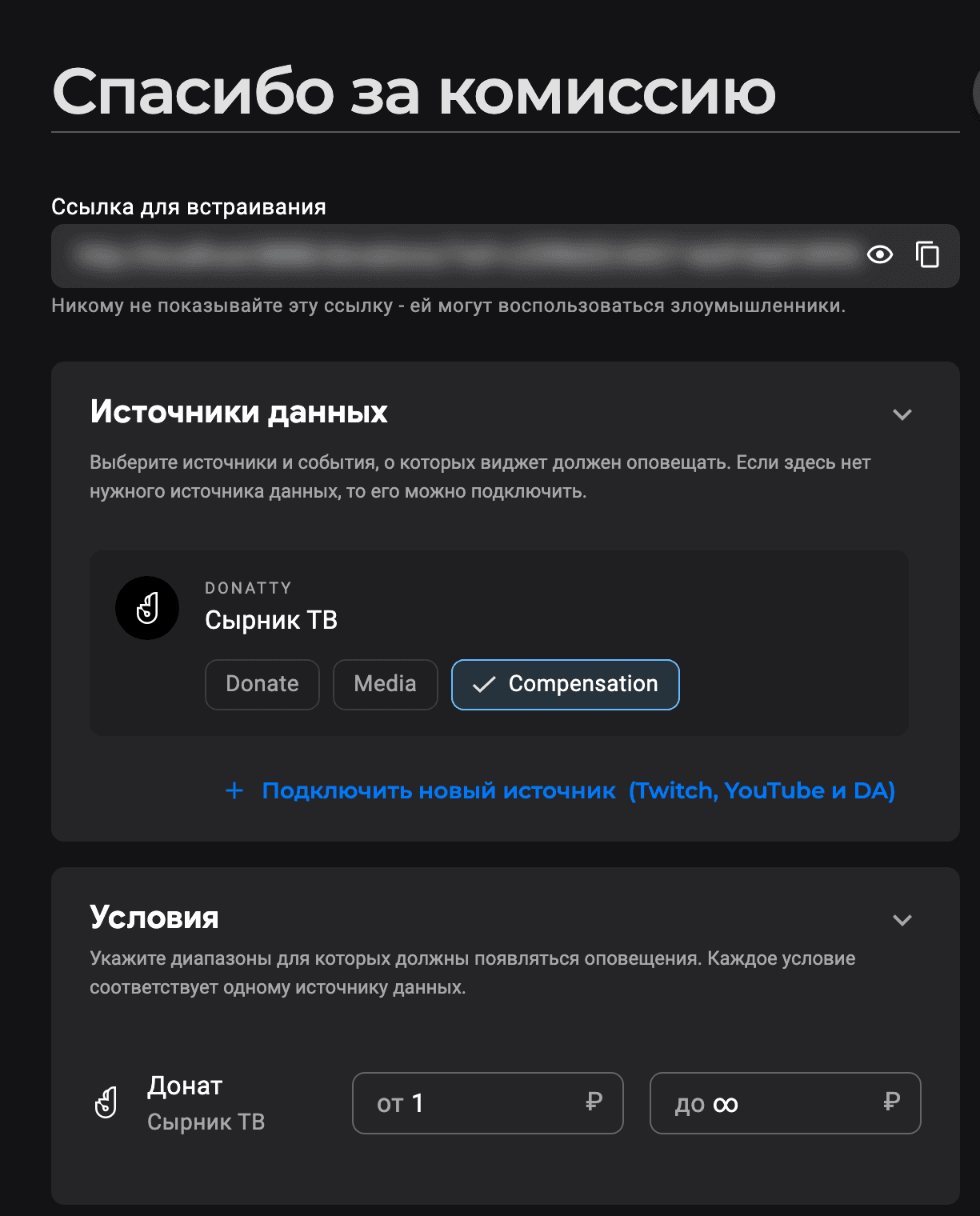
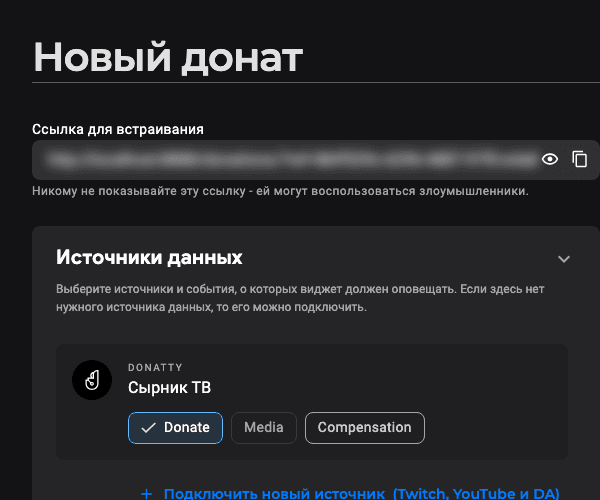
In the Data sources block, under Donatty, leave only Compensation enabled and turn off Donate and Media.
Open the Title or Text tab and add the {amount_compensation} tag — the compensation amount — to the Template field. For example:
{username}: {amount} {unit} and another {amount_compensation} {unit} for the fee. Thank you!
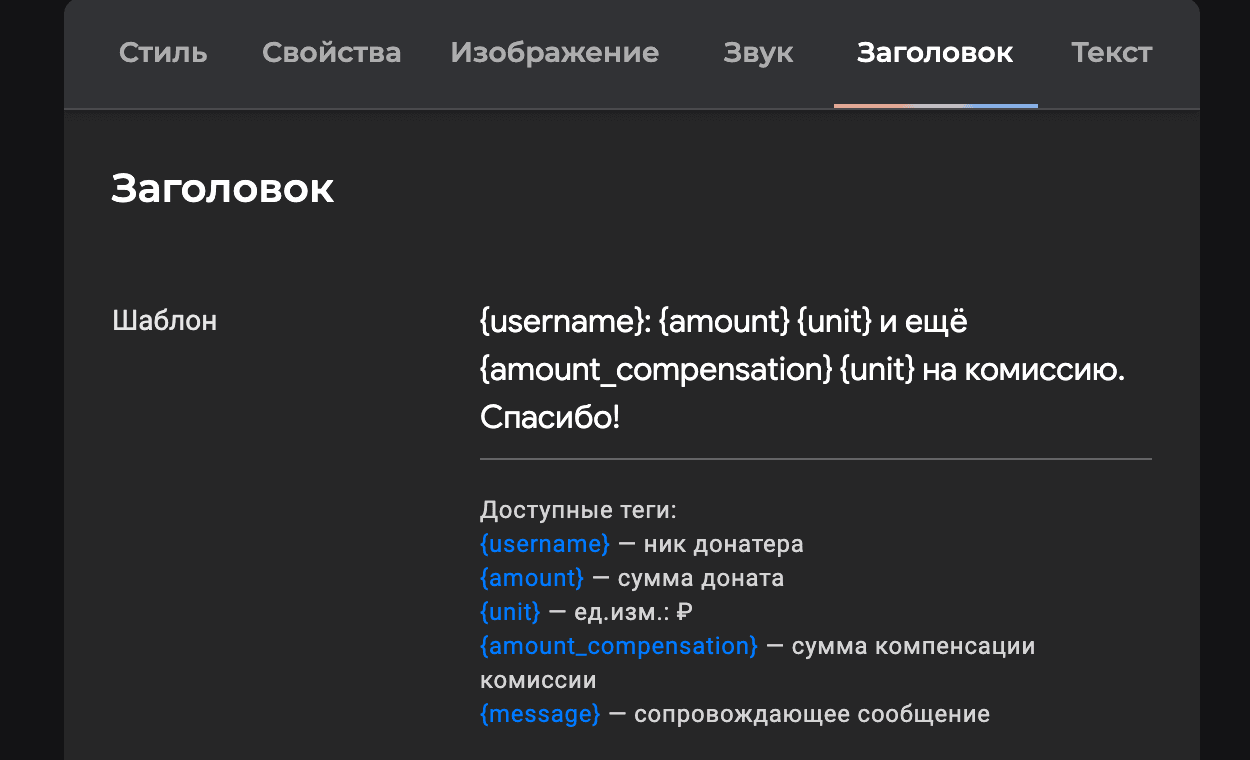
{amount} is the donation amount without compensation, so the amounts are not counted twice. The preview on the right will show right away what the alert looks like. Set up the image and sound and click Save settings.

Creating an alert for donations with media
In the same way, create one more Alert, for example “Donation with media”. In Data sources, leave only Media.
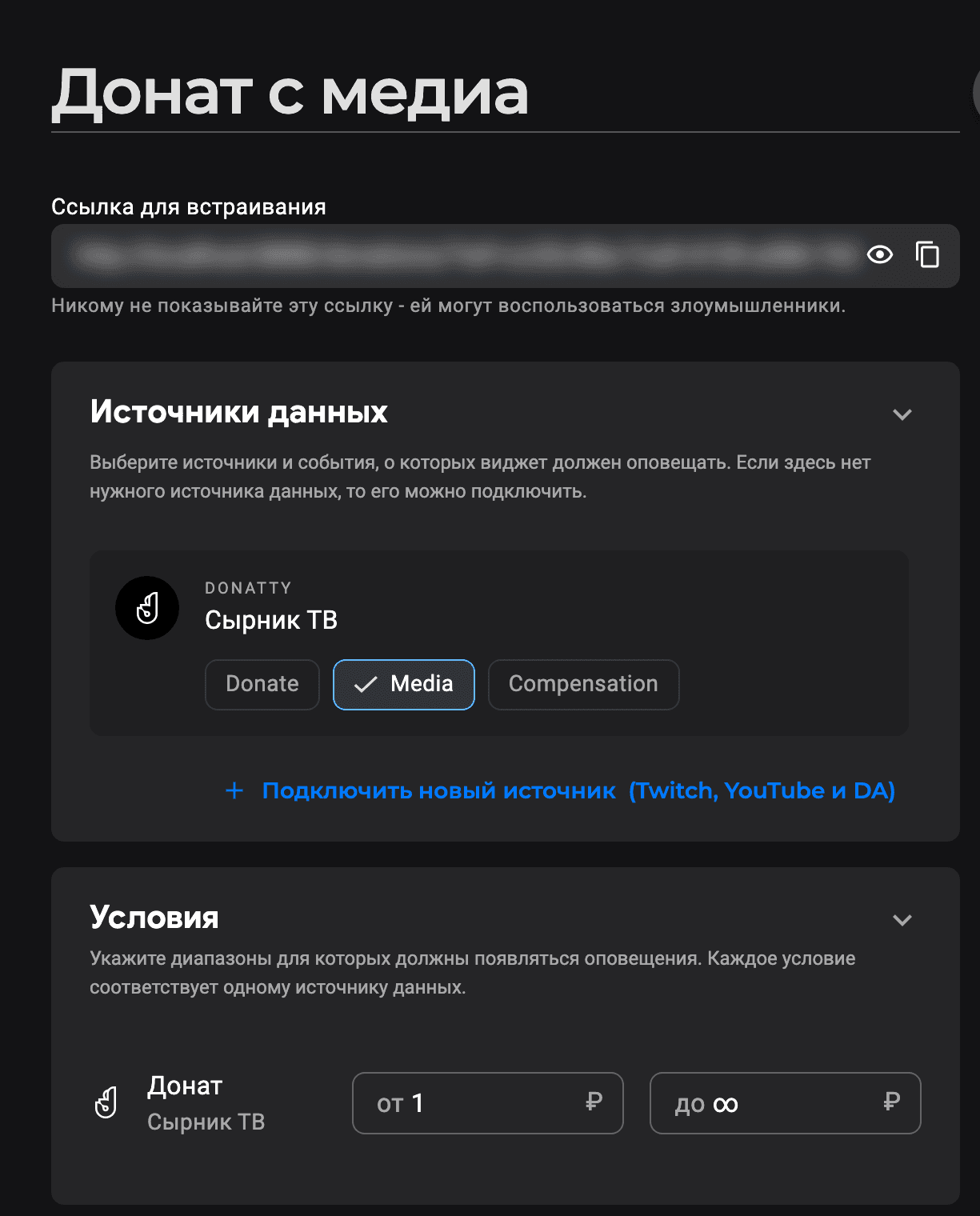
In the Template field, add the {video_name} tag — the video title:
{username} requests “{video_name}”
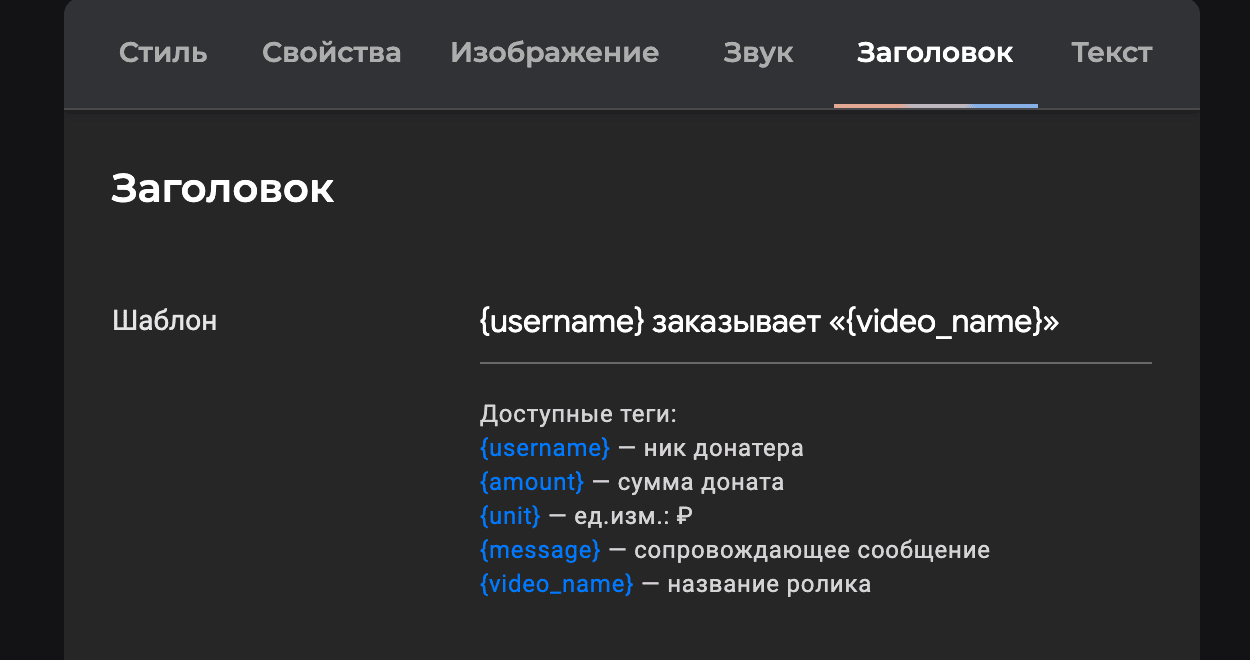
On stream it will look like “CatInBoots requests “Say My Name””.

Tip: a donation with media goes to the alert with Media even if the donor covered the fee. The alert with Compensation fires for donations with compensation that have no video attached.
Turning off the chip on the main alert
The alert already on your scene has all the Donatty sources enabled by default: Donate, Media and Compensation. If you leave them on, both alerts — the main one and the new one — will fire for a donation with compensation or media.
Open the main alert and, in Data sources, turn off Compensation and, if you made a media alert, Media as well. Save your settings.
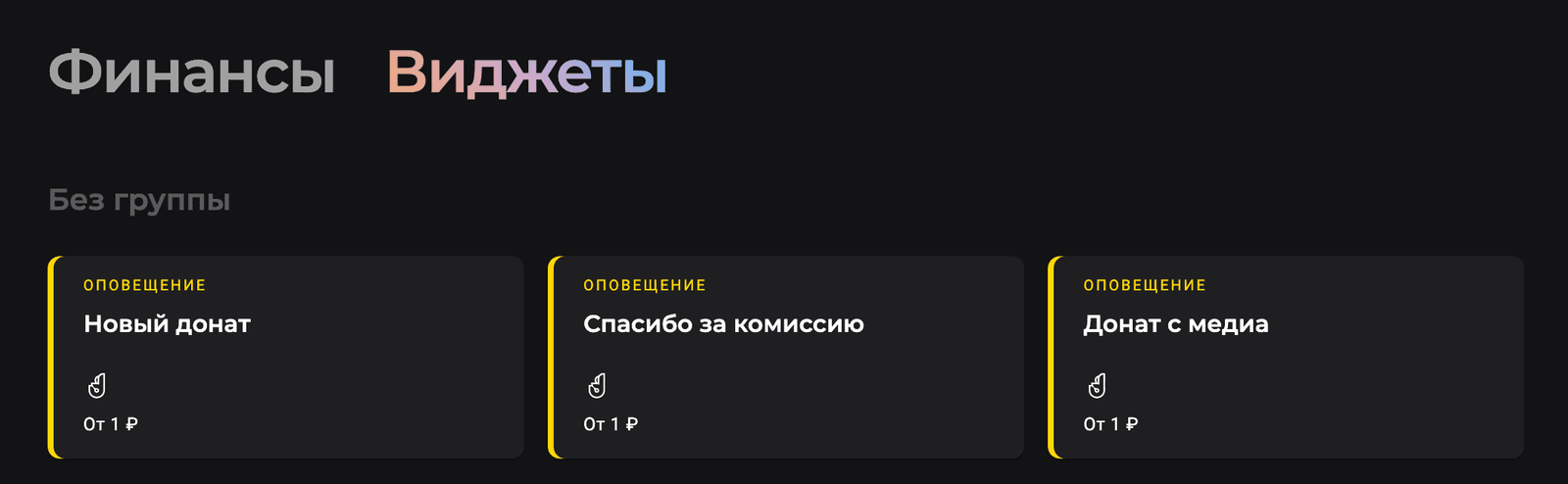
You will end up with three alerts, each with its own donations.
Adding the alerts to your stream
The new alert is a separate widget with its own link. Copy it at the top of the widget settings screen: the button to the right of the link field.

Then, in OBS, click Add in the Sources panel, choose Browser and enter a name for the source, for example “Thanks for covering the fee”. Paste the link into the URL field and click OK.
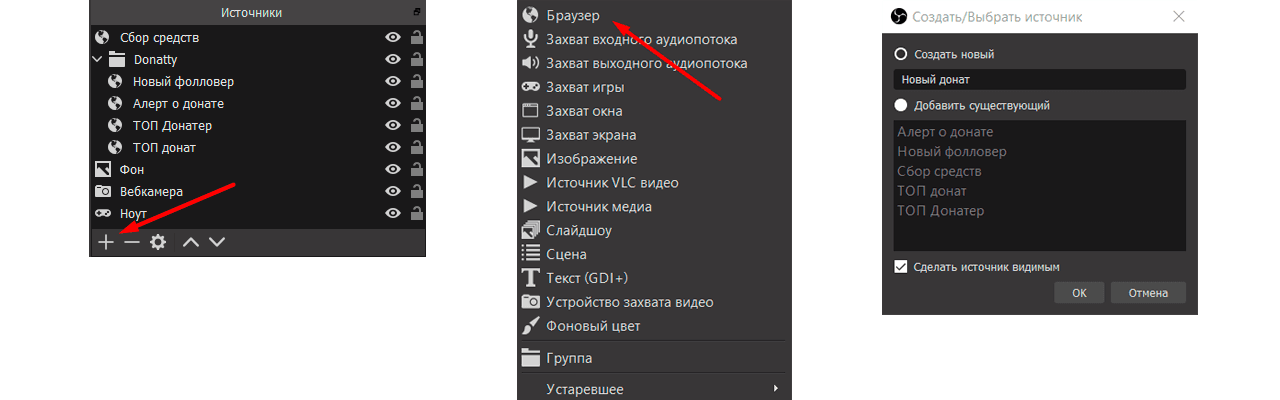
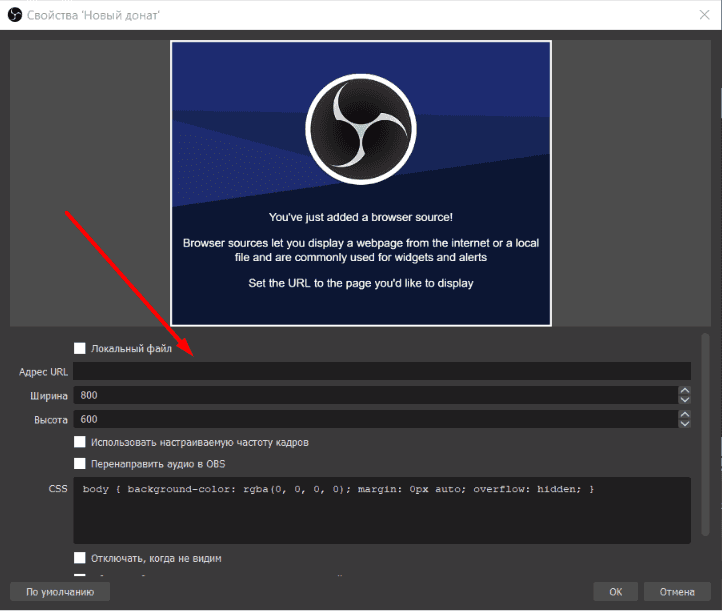
Tip: to avoid adding each link to OBS separately, create the new alerts in the same group as the main one: then the group’s single link is enough. We explain how in the guides How to create an alert widget group and How to add several alert widgets to OBS with one link.
Testing the alert
The preview on the right in the alert settings shows the template with a sample amount. To check the alert on your scene, send yourself a small donation through your donation page while the widget is open in OBS: with the compensation checkbox ticked for the first alert, and with a video for the second.
We covered what else came in the release on the blog: Release of 7 November: fee compensation and two new alerts.